
What Is IGTV and How to Download IGTV Videos to Your Device
Instagram is mostly associated with short clips and photos, but there’s a whole other side of the platform built for longer content. IGTV — Instagram TV — has been around since 2018 and hosts videos up to 60 minutes long. If you’ve ever come across a detailed cooking tutorial, a full podcast episode, or a long-form travel vlog on Instagram and wondered how to save it — this guide covers everything. We’ll explain what IGTV actually is, why it’s different from Reels, and how to use a free IGTV downloader to save any video to your phone or computer.
What Is IGTV?
IGTV is Instagram’s long-form video format. Unlike regular feed videos or Reels — which cap out at 90 seconds — IGTV videos can run for up to 60 minutes. That makes it a completely different type of content: think full interviews, extended tutorials, documentary-style clips, and creator series.
When Instagram launched IGTV, they also released a standalone IGTV app. That app was eventually discontinued, but the IGTV format itself lives on inside Instagram. You’ll find IGTV videos on creator profiles under the video tab, and they sometimes appear in the regular feed as well.
IGTV vs Reels — What’s the Difference?
People often confuse IGTV and Reels since both are video formats on Instagram. They serve very different purposes though:
| Feature | IGTV | Reels |
| Max length | Up to 60 minutes | Up to 90 seconds |
| Orientation | Vertical or horizontal | Vertical only |
| Best for | Long tutorials, interviews, vlogs | Short clips, trends, quick tips |
| Where it appears | Profile tab + Feed | Reels tab + Explore |
| Audio | Full original audio | Often trending sounds |
In short: Reels are for quick, snappy content. IGTV is where you go when the topic actually needs time to breathe.
Why Download IGTV Videos?
Instagram doesn’t offer any built-in way to save IGTV videos to your device. There’s no download button — the platform wants you to stay inside the app. But there are plenty of legitimate reasons to want the file locally:
- Offline viewing — watching a 40-minute tutorial without burning mobile data
- Saving content before it disappears — creators sometimes delete old videos
- Research and reference — marketers and creators archiving competitor or industry content
- Backing up your own IGTV videos — downloading your own content as a local copy
- Slow connection — downloading once and watching later is easier than buffering
How to Download IGTV Videos — Step by Step
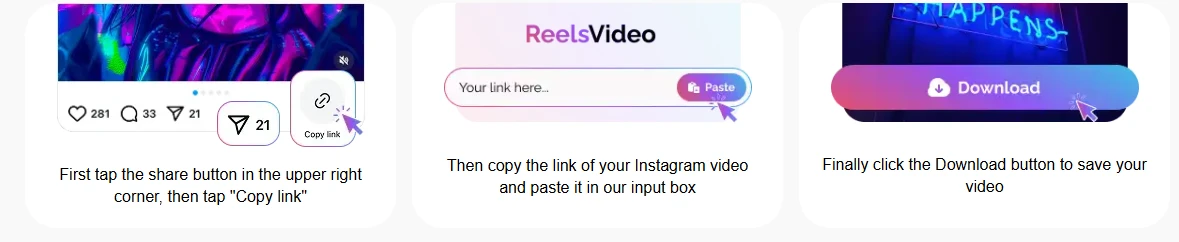
The fastest way is to use reelsvideo.io/igtv-video-downloader. No account, no app to install, works on any device.
Step 1 — Find the IGTV video and copy its link
Open Instagram and go to the creator’s profile. Tap the video tab to see their IGTV content. Open the video you want, then tap the three-dot icon (••• on iOS, ⋮ on Android) and select Copy Link. On desktop, click the three dots below the video and choose Copy Link.
Step 2 — Paste the link into the downloader
Open your browser and go to reelsvideo.io/igtv-video-downloader. Paste the copied link into the input field.
Step 3 — Download the video
Click the Download button. The tool fetches the video from Instagram’s servers in its original quality and starts the download. Longer videos may take a few seconds to process — that’s normal.
Step 4 — Find the file on your device
The MP4 file saves to your default Downloads folder. On iPhone, check the Files app. On Android it’ll show up in your Downloads folder or Gallery. On desktop it appears in your browser’s download bar.
Device-Specific Notes
iPhone
If Safari tries to play the video instead of downloading it, long-press the Download button and choose Download Linked File. The video saves to Files → Downloads. From there you can move it to the Photos app if needed.
Android
Chrome handles IGTV downloads cleanly. The file goes straight to your Downloads folder. For longer videos (30–60 minutes) make sure you have enough storage space before starting — IGTV files can be several hundred MB.
Desktop
Standard browser download. The MP4 file lands in your Downloads folder. If the video plays in the browser tab instead of downloading, right-click the video and choose Save Video As.
What Quality Will the Video Be?
The tool downloads the video in the best quality available on Instagram — typically HD (720p) or Full HD (1080p), depending on what the creator uploaded. IGTV supports both vertical (9:16) and horizontal (16:9) formats, and the downloaded file preserves the original aspect ratio and resolution.
One thing to keep in mind: Instagram applies its own compression when creators upload videos. The file you download is the best version Instagram has — which is excellent for watching, but not the raw uncompressed original from the creator’s camera.
Does It Work for All IGTV Videos?
The tool works with any IGTV video from a public account. If a profile is set to private, the link won’t return any data — there’s no way around this, and any tool claiming otherwise isn’t being honest.
It works equally well for:
- Short IGTV videos (1–10 minutes)
- Long-form IGTV content (up to 60 minutes)
- Both vertical and horizontal formats
- IGTV series — just download each episode individually by its link
Common Questions
Is it free?
Yes, completely free with no download limits. No account or payment required.
Do I need to log into Instagram?
No. You only need the public link to the video. Your Instagram credentials are never involved.
Can I download my own IGTV videos?
Yes — this is actually one of the most common use cases. If you posted an IGTV video and want a local backup, just copy the link to your own video and download it the same way.
What if the video is very long?
The tool handles long videos fine. Processing may take slightly longer for a 60-minute video compared to a 5-minute one, but the steps are identical. Just make sure your device has enough free storage before downloading.
Save It Before It’s Gone
IGTV content doesn’t stay around forever. Creators delete old videos, switch account types, or take breaks — and when that happens the content disappears with no warning. If there’s an IGTV video you genuinely find useful or want to keep, the smart move is to download IGTV videos while you still can. Copy the link, paste it into the tool, and you’ve got the file. Simple as that.